- Globlinker - Reliable Data in 130+ Countries: The ultimate travel companion. Use the Globlinker link above to receive an extra bonus when you purchase your device. Enjoy high-speed data without swapping physical SIM cards or paying roaming fees to your home provider.
Expand All |
Collapse All
×
📱 Understanding the Complimentary (free) 2GB USA Data Per Month
The monthly 2GB allowance is a highly lucrative benefit, but it is USA data. You can request to convert this data for use in other countries, but the conversion rate depends entirely on your destination.
More details...
The monthly 2GB allowance is a highly lucrative benefit, but it is important to remember that this is USA data, not global data. While you can request to convert this data for use in other countries, the conversion rate depends entirely on your destination.
1. Why This Is a Great Deal
To purchase a standalone 2GB monthly plan (24GB per year) from another provider, you could easily expect to pay around $50 or more annually. By using the complimentary data within the USA, your initial investment for the GlobLinker device completely pays for itself in just a few years.
Note: This long-term value assumes the provider continues operations, which is always a calculated decision and a gamble when buying into any new tech hardware ecosystem, but it is a highly rewarding perk if you utilize it.
2. How International Data Conversion Works
Below is the direct information provided by GlobLinker support (a question was about UK, but the answer is generic) regarding how to request a data conversion for international travel.
Disclaimer: Use this information at your own risk. I am a fellow Globlinker user and not an official company representative.
"Yes, in many cases, the USA data can be converted for international destinations, including the UK. Please note that all conversions are based on local data pricing, so the amount of data received depends on the destination: ✍️ Asia → You usually get more GB because data is cheaper there. ✍️ Europe (including the UK) → This is typically close to a 1:1 conversion, as data prices are similar to the USA. ✍️ Africa, islands, and the Middle East → You may receive fewer GB because data costs are higher there. They can contact us and provide their serial number They tell us their travel destination and travel dates. We then prepare and convert the data accordingly. Also, because the UK is included under our Europe regional plan, UK travelers would use the Europe plan rather than a separate UK plan. We always recommend contacting us before the first activation so we can help maximize the value of the complimentary data. Let me know if you need anything else!
📊 Where Can I Check Details for My Monthly 2GB Data?
You can view your active, inactive, and expired data plans directly through the GlobLinker customer portal at globlinker.app under Data Usage and Plan History.
More details...
You can check the balance, usage, and status of your monthly 2GB complimentary allowance directly through the GlobLinker customer portal.
1. How to Access Your Data Portal
- Go to the customer portal website at https://globlinker.app.
- Click My Account, enter your username (or email) and password, and log in.
- Click My Account again, then select Data Usage and Plan History.
2. Understanding the Three Plan Sections
Once you are on the Plan History page, your data is divided into three sections:
- Active Data Plans: Shows plans currently in use, along with your device number, used data vs. total package data, activation date, and expiration date.
- Inactive Data Plans: Shows plans that have not yet been activated, but are stored in your account and ready to use on demand.
- Expired Data Plans: Shows past packages that have reached their expiration date.
📱 Managing Your Device and Data with the New Globlinker Mobile App
The official Globlinker app allows you to sign in with your existing account to monitor remaining data, track active plans, top up data on the go, and review your usage history while traveling.
More details...
The official Globlinker mobile application is now available for mobile devices (as of Oct 7, 2026). It lets you sign in using your existing account credentials to manage your mobile Wi-Fi device, monitor live data allowances, and purchase plans directly while traveling without needing a desktop browser.
Key Features & Capabilities
- Live Data Tracking: Monitor your real-time usage and verify remaining data balances in seconds.
- Plan Overview: View active data bundles as well as newly available regional and international plans.
- On-the-Go Top-Ups: Purchase extra data directly inside the app whenever you need a refill.
- Usage History: Review your past orders, active plan durations, and consumption history across trips.
Where to Get the App
You can search for Globlinker directly inside your device's official app store (available for both iOS via Apple App Store and Android via Google Play). Once installed, log in with your current account details to sync your device automatically.
Tip: Download and log into the app before your trip starts while connected to home Wi-Fi. This ensures your account is linked and ready to track data usage the moment you turn on your device overseas.
🌎 How to Check if GlobLinker Works in a Specific Country
Visit globlinker.app and use the 'Search Countries' search box in the top right, or browse regional submenus like 'Global Plans' and 'Europe Plans' to view covered destinations.
More details...
Before traveling, you can confirm whether GlobLinker can provide active coverage in your destination country by using the plan browser on the official portal, checking regional plan manifests, or reaching out directly to the support team.
Crucial Note: Supported Coverage Does Not Mean Automatic Internet
Just because GlobLinker technically supports and operates in your destination country does not mean your device will connect automatically when you land. The hardware will not provide internet access abroad unless you have an active data plan assigned to that destination - whether that is a newly purchased regional/country package or your complimentary monthly data converted in advance by support.
Just because GlobLinker technically supports and operates in your destination country does not mean your device will connect automatically when you land. The hardware will not provide internet access abroad unless you have an active data plan assigned to that destination - whether that is a newly purchased regional/country package or your complimentary monthly data converted in advance by support.
1. Using the "Search Countries" Tool (and Its Quirks)
The fastest direct method is checking on the web portal:
- Go to globlinker.app.
- Look in the upper right-hand corner for the "Search Countries" input box.
- Type slowly: The search indexing on the site can be finicky. Sometimes typing the full name causes the search to stall or return zero results. For instance, typing
Armesuccessfully pulls up plans for Armenia, but adding an extra letter to make itArmencan fail and display "nothing found". - If typing your destination fails, back up to the first 3 or 4 letters to check if the query registers.
2. Checking Regional Plans & Manifests
If the search bar fails to display your country, check the grouped regional tabs directly:
- Navigate through the top submenus such as "Global Plans", "Europe Plans", "Asia Plans", etc.
- Click "More Details" on any relevant plan card.
- Review the complete expanded destination list. Many smaller or less common travel destinations are bundled under broad regional packages even if they do not appear as standalone country plans.
3. Verifying Directly with Support
If you still cannot verify coverage for your specific destination, contact the team directly at support@globlinker.com. They are very responsive and can tell you exactly which local carrier network your device will attach to in that country.
⚠ Fraud Alert: Are there fake 'Official' GlobLinker groups?
Yes - be careful of groups using names like 'GloblinkerOFFICIAL' (as of 4/23/26) to trick users. They could be fake and lead to competitor links instead of real support.
More details...
Fraud Alert, April 2026: I have identified deceptive online communities using the GlobLinker name to trick travelers into purchasing competitor products.
The Situation: New groups are appearing on social media with names like "GloblinkerOFFICIAL" to appear legitimate. To an unsuspecting traveler looking for help, these look like a primary source for support.
The Danger: Once you join these groups, the links provided do not lead to GlobLinker support or hardware. Instead, they point to third-party competitors. This is a deceptive practice designed to "steal" customers through misinformation and brand impersonation.
My Stance: I do not mind when loyal users create unofficial communities to share experiences and support each other, as long as they are focused on the actual brand. But deceiving users by pretending to be "official" only to point them to a competitor is wrong.
How to Stay Safe:
- Check the Links: Before clicking a "Buy" or "Support" link, always verify where the URL is actually taking you.
- Official vs. Unofficial: Real official groups usually have a direct link from the manufacturer's website. If a group claims to be official - even if it is filled with GlobLinker photos - but leads to a competitor's site, it is a fake.
- Vigilance: Always double-check the source before providing personal information or making a purchase in groups claiming to be official.
The Conclusion: Stick to trusted, verified communities for your travel tech needs. If you ever feel a link looks "fishy," feel free to reach out to me to share the info.
🚚 How long does it take to receive the device?
For me, it took just under a week from payment to delivery. I ordered on a Thursday (in Feb 2026) and the device arrived the following Wednesday. Of course, shipping times can vary.
Additional Resource ↗
🌐 Do I need a separate plan for each country, and can I pause my data?
Yes, data is purchased per specific country or region, and packages run on a continuous timer (like 7 or 30 days) that cannot be paused once activated.
More details...
As fellow users of GlobLinker, we have tried many different providers over the years - including Airalo, GigSky, the orange one, among many others.
Based on our experience, every single roaming provider operates on the same basic business model: they buy data at wholesale rates from local telecom networks worldwide and resell it to consumers in smaller packages. There is simply no such thing as "free global data" outside of your home country. Data costs money everywhere, and the rates heavily depend on the region (for example, the Caribbean is usually quite expensive, while Europe is much cheaper).
In the US, they can include 2 GB of "free" data per month because data is dirt-cheap there. In other countries, data costs more. While the device itself works globally across supported countries, the data plans and allowances are still region-specific.
The main difference is that some providers use a "no hardware, free eSIM" model, while GlobLinker requires you to buy "paid hardware." However, the data itself is always a separate cost.
To answer specific questions based on how these systems typically work:
- Plans for each country/region: Yes, you generally have to buy a specific plan for the country or region you are visiting. No provider offers a single, truly unlimited flat-rate plan for the entire world without regional structures.
- Putting a plan on hold: Data packages come with a fixed expiration date (like 7, 30, or 365 days) that starts counting down once activated. You cannot pause or put a plan on hold when traveling back and forth; you will need to buy shorter plans that perfectly align with your trip lengths.
📶 Can I convert (transfer) leftover data from an active package to a different country?
No. You can only convert or transfer a data package to another country or region before you start using it. Once activated, it is locked to that destination.
More details...
No. You can only convert or transfer a data package to another country or region before you start using it.
Some data packages are valid for 7 days, others for 30 days, and larger packages (like 100 GB) for up to 1 year. If you purchase a multi-day or 1-year package for one destination (e.g., Japan), use a portion of it, and then try to convert the remaining balance to another country (e.g., Italy), GlobLinker support will not transfer the leftovers.
- Rule to remember: Once a data package is activated and begins consuming data, it is locked to that destination.
- Best practice: Buy only the data you need for your current trip rather than purchasing a large long-term package with the intention of splitting it across multiple destinations.
🧪 Hardware Test: Can you use a USB cable for data on GlobLinker?
No - for regular users, it is for charging only. (Based on my test in April 2026)
Note: Advanced users with knowledge of Remote NDIS drivers may be able to enable tethering, but this is not a standard plug-n-play feature.
More details...
Hardware Test, April 2026: I ran a test to see if the GlobLinker device can share internet (tether) via a USB cable or if the port is strictly for power.
The Setup: I used a verified data-USB cable. For those who don't know, there is a big difference between cables:
- Data-Verified Cables: Designed to pass both power and data (like when you connect your phone to your PC to move photos).
- Charge-Only Cables: These have the data pins physically removed. They can only supply power to charge the battery.
The Test: I connected my GlobLinker to my Windows desktop using a proven data cable (the same one I use for my phone). When I connect my phone with this cable, Windows immediately says "New device connected."
When I connected the GlobLinker, Windows said nothing. There was no notification and no data connection found. The GlobLinker screen did show that charging was in progress, meaning power was incoming perfectly.
The Conclusion: The USB-C port on the GlobLinker (at least on my current hardware version) is for charging only. It does not support data transfer or internet sharing via cable. This is by design.
My Advice: Stick to the regular GlobLinker Wi-Fi connectivity to get internet to your laptop, desktop, or phone. It works great!
⚡ What speed does your GlobLinker 4G deliver?
In theory, 4G speeds range from 20 to 50 Mbps, but actual performance depends on your signal and local network conditions.
More details...
In theory, most 4G LTE networks provide speeds between 20 Mbps and 50 Mbps.
In reality, however, speed heavily depends on your location - and even whether you are indoors or outdoors.
For example, when I am inside my house, the cellular signal from any provider can barely penetrate the walls and the metal mesh in the stucco.
But the moment I step outside onto the patio, the speed is lightning fast.
Here is what you can typically do with those speeds:
If your GlobLinker delivers 20 Mbps (Standard 4G):
- Social Media & Web: Almost instant. Fast loading for Facebook, emails, and travel maps.
- Video Calls: Smooth. Great for Zoom or FaceTime while you're on the move.
- Standard Video (480p): Perfect. This should be seamless streaming with zero buffering - also the best way to save your data!
- High Definition (720p/1080p): Very Good. A solid signal handles Full HD easily for YouTube or Netflix.
- You should stick to Standard Definition (480p) or "Data Saver" mode to avoid buffering. Web browsing and emails will still work fine, but HD video may stutter.
- 4K Ultra HD: This becomes possible, but keep in mind that it eats through your data allowance 7x faster than Standard HD!
The "Fine Print": Please keep in mind that this is all theory. Connection speeds depend on your location, the local towers, and how many people are using the network at once. I can't make any promises on exactly what speed you will get in every spot - so no guarantees here!
Tip: Always check your signal strength! If you want your data to last 3 to 4 times longer, set your streaming apps to "Data Saver" mode. You still get a great picture on a phone or tablet, but you save a lot of GBs.
🌴 Real-world Test: How does GlobLinker perform in the Bahamas?
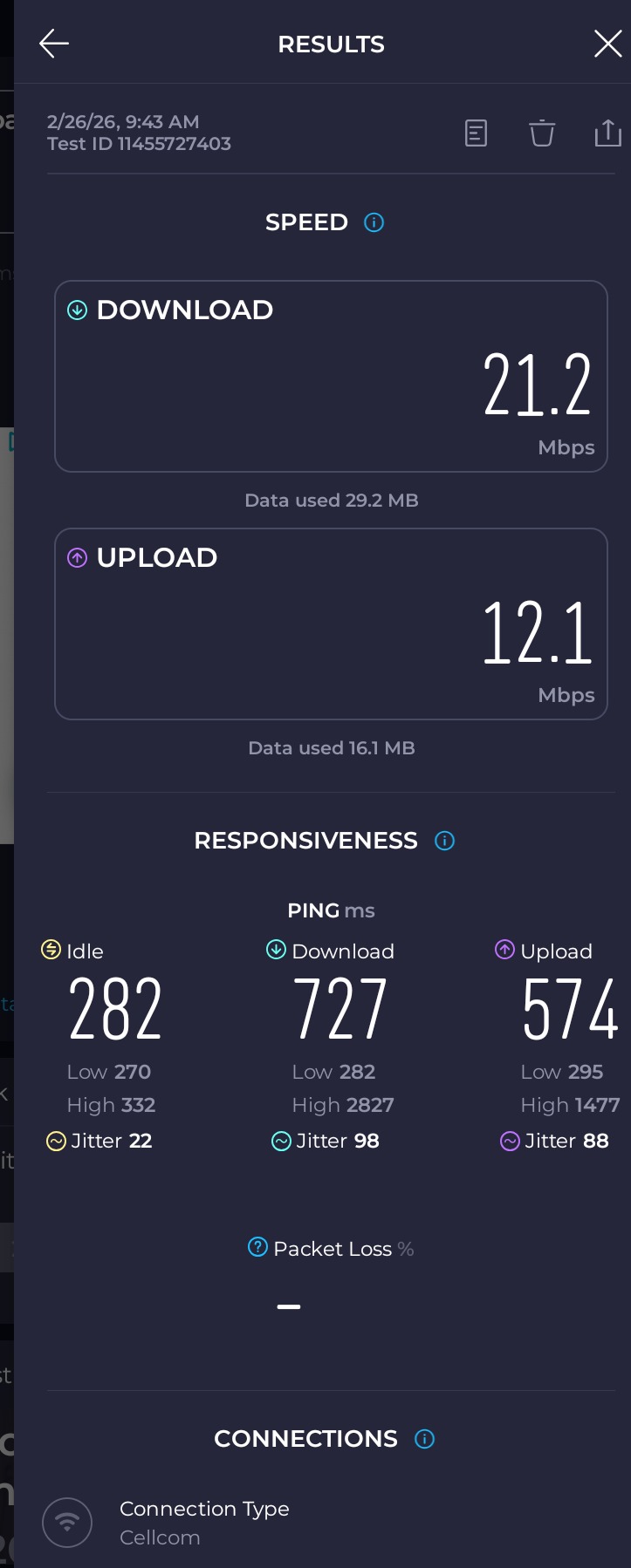
A hands-on speed test from February 2026 showing that 21 Mbps is more than enough for a seamless travel experience while cruising.
More details...
Real-world Test: Bahamas (February 2026)
Additional Resource ↗
There is a big difference between "laboratory speeds" and what you actually need while traveling. During a recent trip to the Bahamas, I ran a live connectivity test to see how the GlobLinker handled roaming on local networks.
The Conclusion: A 21 Mbps connection is plenty of power to stay fully connected while cruising or touring. Whether you are checking emails, posting to social media, or making a quick video call back home, this speed provides a smooth experience.
It's all about reliable access, not just chasing the highest number! While some providers boast about 5G speeds that you can rarely find in remote ports, having a stable 21 Mbps signal in your pocket means you are never truly out of touch.
Tip: If you are on a cruise ship, using your GlobLinker while in port or on deck (within range of land towers) is often much faster and more cost-effective than paying for expensive satellite-based ship Wi-Fi!
Actual Speedtest result: 21.2 Mbps Download
📏 Range Test: How far does the GlobLinker Wi-Fi reach?
I did a range test on the beach to see how far the signal reaches. While it can hit 100 yards, there is a better 'sweet spot' for the best speeds.
More details...
Range Test: How far does the GlobLinker Wi-Fi reach?
I did a range test on the beach today to see exactly how far I could walk away from the GlobLinker before my phone dropped the connection.
The Results: In my open-space beach test, my phone held the connection up to 100 yards away. At that distance, the phone did show a "low quality" Wi-Fi warning. While I didn't run a speed test at the maximum range, it is expected that speeds would be significantly lower than when standing nearby.
The "Sweet Spot": For the best performance and most stable speeds, you want to stay much closer to the device.
The Verdict: While the signal can reach quite far in an open area like a beach, the best choice is to keep the GlobLinker in your "personal bubble" or at least in the same room. For travelers, keeping the device nearby ensures you get the full speed of your data plan without interference.
The "Fine Print": Physical obstacles like walls, trees, or other electronic interference can significantly reduce this range - so no guarantees here!
Tip: If you are sharing the connection with friends or family at a campsite or on a boat, try to place the GlobLinker in a central, elevated spot to maximize the connection for everyone.
✈ Does GlobLinker work on airplanes?
No, GlobLinker will not work while you are up in the air on an airplane.
More details...
GlobLinker will not work while you are up in the air on an airplane.
GlobLinker relies on ground-based cell towers (using CloudSIM AI to connect to carriers like AT&T, Verizon, or T-Mobile when you are in the US, and local carriers abroad). Since commercial airplanes fly at around 30,000+ feet, the device cannot reach those cellular towers on the ground.
What to expect during your trip:
In the air: You can put your GlobLinker in your carry-on and turn it off for the flight. To get online in the air, you will still have to use the airline's official in-flight satellite Wi-Fi or other 3rd party tools.
At the airport & on the ground: When you touch down, taxi to the gate, or hang out in the terminal, you can turn the GlobLinker on. It will immediately pick up the strongest local cellular signal so you can bypass the slow airport Wi-Fi.
💵 Transparency on Bank Fees: Will I be charged extra?
Some banks may charge a small international fee for device purchases. The good news is that GlobLinker will refund this amount to you.
More details...
Transparency on Bank Fees
Additional Resource ↗
I’ve been in touch with GlobLinker support regarding a rare issue where some banks charge an "International Transaction Fee" on device purchases.
The "Inside Scoop": Because GlobLinker uses Shopify Payments, some banks might process the transaction internationally depending on their own internal rules. However, you shouldn't have to pay extra just to get your device!
The Good News:
If your bank charged you an unexpected "International Fee" for your device purchase, GlobLinker promised to refund that amount to you (info as of Feb 2026). Just reach out to their support team with your receipt.
What about Data Purchases?
There are no international processing issues for data top-ups. Those are charged locally in your selected currency (USD, EUR, or GBP) based on where you are, so you won't see those surprise fees there.
Tip: Always keep a digital copy of your receipt. If you see a fee of 1% to 3% on your bank statement labeled as "Foreign Transaction" or similar, that is exactly what GlobLinker is offering to cover for you.
📱 How to stop quiet data drain by my Phone?
Configure your phone to treat the hotspot as a 'Metered' connection to prevent automatic background updates.
More details...
Stop "Quiet" Data Drain on your Phone
Additional Resource ↗
By default, your phone treats all WiFi networks as "unlimited." This means the moment you connect to your GlobLinker, your phone might decide it’s the perfect time to download a 2GB system update or backup all your high-res photos to the cloud in the background.
To prevent your data allowance from being "eaten" quietly, you can tell your phone to treat your GlobLinker WiFi as a Metered Network.
How to do it (Android/Pixel):
- Connect to your GlobLinker WiFi.
- Go to Settings > Network & internet > Internet.
- Tap the Gear Icon next to your GlobLinker network.
- Tap Network usage.
- Select Treat as metered.
- Connect to your GlobLinker WiFi.
- Go to Settings > Wi-Fi.
- Tap the (i) icon next to the network name.
- Toggle Low Data Mode to ON.
The Result: Your phone will now behave as if it's on a cellular plan. It will pause automatic updates and large background syncs. You can still run updates manually when you are back on your home WiFi, but this ensures you stay in full control of every GB while traveling!
💻 How to stop my Laptop from using up all my data in the background?
Configure your computer to treat the hotspot as a Metered connection to prevent automatic background updates and large cloud syncs.
More details...
Stop your laptop from "stealing" your data!
Additional Resource ↗
Did you know that a laptop connected to your GlobLinker Wi-Fi can drain your data allowance in the background? Windows and macOS often try to download huge updates or sync cloud files (like OneDrive or Dropbox) without you even knowing it.
To prevent this and make your GBs last much longer, you can set your GlobLinker Wi-Fi as a Metered Connection.
How to do it on Windows:
- Connect your laptop to your GlobLinker Wi-Fi.
- Go to Settings -> Network & internet -> Wi-Fi.
- Click on your GlobLinker network properties.
- Toggle Metered connection to "On".
- Stops most automatic Windows updates.
- Pauses some background app activity.
- Reduces data usage for many apps automatically.
The Result: Your computer will now treat your hotspot as a limited data source. It ensures you stay in full control of your data usage while traveling and prevents "surprise" data depletion!
📊 Data Transparency: Why does it look like I'm using more data?
GlobLinker provides full transparency with hourly usage reports. Most 'high usage' is actually caused by how your phone or laptop behaves when it sees a Wi-Fi connection.
More details...
Transparency Matters: Understanding Your Data Usage
One of the best features of GlobLinker is their commitment to transparency. If you ever feel your data is disappearing faster than expected, you don't have to guess why.
Hourly Usage Reports: Any customer can contact GlobLinker Official Support at any time to request a detailed data usage report. This report shows your usage hour-by-hour, which helps you:
- Understand exactly when your data is being consumed.
- Identify unexpected "spikes" (like a movie download or system update).
- Optimize your device settings to save data for your next trip.
Why does a hotspot sometimes use more data than a phone?
This is a very common misunderstanding. When you connect a phone, tablet, or laptop to the GlobLinker, your device detects it as "Home Wi-Fi," not a mobile data connection. Because of this, many devices automatically start doing things they usually "wait" to do at home, such as:
- Downloading large system or app updates.
- Syncing thousands of photos to iCloud or Google Photos.
- Running heavy background cloud processes (OneDrive, Dropbox, etc.).
The Verdict on Transparency:
No data is hidden or vague. What you see on your report is exactly what the system sees. If you notice unusual usage, reach out to GlobLinker support, request a full usage report, and they can help you identify which of your devices is responsible for the drain.
Important Tip: To avoid this "quiet" drain, remember to set your connection to "Metered" or "Low Data Mode" on your specific device. We have step-by-step instructions for this in our other FAQ items!
The "Fine Print": Please keep in mind that as a travel agency, we do not have access to your private data logs. You must contact GlobLinker support directly through your official account portal to request these reports.
📶 eSIM vs. CloudSIM: What is the difference?
While a standard eSIM usually locks onto one specific network per country, CloudSIM technology (GlobLinker) constantly scans all available local networks and automatically connects to the strongest, most stable one.
More details...
eSIM vs. CloudSIM: What is the difference?
Many travelers ask about the difference between a standard eSIM and the CloudSIM technology used by GlobLinker. Based on information shared by the official GlobLinker support team, here is a simple breakdown:
- eSIM: This is a digital SIM inside your phone. Most of the time, it connects to one main network for the country you are in. It works well, but if that specific network has a weak signal or is overloaded (in crowded areas or rural zones), your connection may suffer.
- CloudSIM (GlobLinker): This technology works differently. The device constantly scans all available local networks around you and automatically connects to the strongest and most stable one. If the signal quality changes, the device can switch networks on its own to maintain your connection.
In Short:
- eSIM -> Generally limited to one network at a time.
- CloudSIM -> Always hunts for the best available network.
Credit: Information provided by the GlobLinker Support Team.
🎥 Movie Night Math: How much does streaming of a movie really cost?
Streaming in HD can eat your data fast! Find out how many movies you can watch on your free 2GB allowance vs. a paid plan.
More details...
Streaming a movie can "eat" data faster than you think!
Additional Resource ↗
When you are traveling, it is easy to forget the data cost of entertainment. Based on a standard 100GB plan for $84 ($0.84 per GB), here is the breakdown for a standard 90-minute movie:
1. High Definition (1080p)
- Data Used: ~4.5 GB per movie
- The Cost: $3.78 per movie
- Impact: This one movie will completely wipe out your monthly 2GB free allowance and over half of your 5GB bonus.
- Data Used: ~2.25 GB per movie
- The Cost: $1.89 per movie
- Impact: This still exceeds your 2GB monthly allowance. You wouldn't even make it to the end credits before the data runs out!
- Data Used: ~1 GB per movie
- The Cost: Only $0.84 per movie
- The Benefit: You can watch two full movies using just your 2GB monthly allowance.
The "Fine Print": Please keep in mind that this is all theory. Actual data usage can vary based on the app you use and how they compress their video. I can't make any promises on exactly how much data your specific device will use - so no guarantees here!
Tip: Your monthly 2GB allowance is great for emails, maps, and social media, but it is not designed for HD streaming. If you plan to watch movies, you can buy a larger data package (like the 100GB plan) or keep your settings on "Data Saver" mode.
🔍 Where is my Data? (Portal vs. Device Screen)
Confused about why your device shows a low balance when you have 15GB? Learn the difference between the 'active slot' and your 'data bank.'
More details...
Where is my Data? (Portal vs. Device Screen)
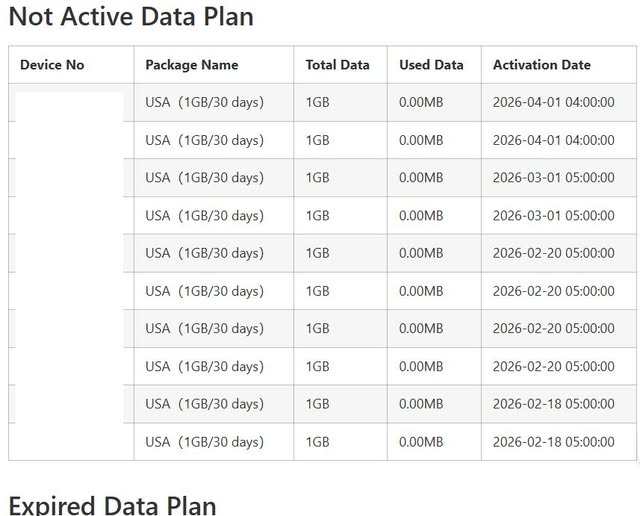
Additional Resource ↗
We’ve had a few great questions recently from members who were confused about how to track their monthly 2GB US data or their stacked data bonus. It is important to know exactly where to look for your total balance.
The Golden Rule: You must check your Online GlobLinker Account (The Customer Portal), not the device screen itself.
The Device Screen: The device itself only shows the data in your currently active data slot. GlobLinker uses a system of "data stacking," which is managed in 1GB pieces.
- Example: If you have 15GB total stacked, the device might only show the 1GB slot currently in use. As soon as you use that 1GB, the system automatically loads the next 1GB slot. You won't run out of data, but the screen will often make it look like you are close to empty.
The Online Account: This is where your actual "data bank" lives. When you log in, you will see a detailed breakdown of all your data plans.
In the screenshot below is from my account, you can see multiple "USA (1GB/30 days)" slots. An Activation Date in the past, with no "exprired date" yet, with 0.00MB Used data - this means they are in the "bank," waiting to be activated. Once 1GB "free" data plan is activated it is valid for 30 days. This is how you verify you are getting your free data every month!
The "Fine Print": Please keep in mind that this is all theory based on how the system manages individual data packets. I can't make any promises on exactly how your specific account dashboard will look - so no guarantees here!
Tip: If your device screen says "Low Data," don't worry! Log into your portal. If you see active plans in your "Data Bank," the next GB will take over the moment the current one hits zero.
Example: A "Data Bank" with several 1GB slots waiting to be activated.
📶 How to Change Your GlobLinker WiFi Name or Password
If you don't want to use the default Wifi Name or default password, you can easily change it to something more personal in just a few clicks.
More details...
How to Change Your GlobLinker WiFi Password
Additional Resource ↗
If you don't want to use the default password, you can easily change it to something more personal. This is a great way to ensure only your trusted devices can connect.
Steps to Change Your Password:
- Connect your phone or laptop to the GlobLinker WiFi (use the current default WiFi password for this step).
- Open your web browser (Chrome, Safari, etc.) and enter this address: 192.168.100.1
- Navigate to the Wireless tab, then the Wireless Security Settings page.
- Enter your new password.
- Click Apply.
Note: Your devices will momentarily disconnect, and you will need to reconnect them using your new password.
WiFi Name: You can also change your SSID (the Wi-Fi "name") on this same page. While the GlobLinker team does not recommend doing so "to avoid potential technical issues," I changed mine and haven't encountered any issues so far. Use this advice at your own risk.
Warning:
Be very careful not to change any other settings unless you are an expert, as it could disrupt your device's performance.
🔒 Security Priority: How to Change Your Admin Password
Every device comes with the same default 'admin' login. Learn how to secure your hotspot's settings page and prevent unauthorized access.
More details...
How to Change Your Admin Password (Security Priority)
Additional Resource ↗
The Risk: By default, the GlobLinker comes with the username "admin" and the password "admin." This is a weak security practice that makes your device prone to unauthorized access. It is recommended to change this immediately.
Once you receive your device, you can change the admin password to something stronger that only you know.
Steps to Secure Your Admin Login:
- Connect your phone or laptop to the GlobLinker WiFi.
- Open your web browser and enter the address: 192.168.100.1
- Log in using the default username (admin) and password (admin).
- Navigate to the Router Tab and then the User Management page.
- Type your old admin password ("admin") and enter your new, stronger password twice.
- Click Apply.
Note: This is different from your WiFi password. The Admin password only protects the settings page (WebUI) where you manage your data and device configurations.
Warning: Be very careful not to change any other settings unless you are an expert, as this could disrupt your connection.
Pro-Tip: If you change the admin password and forget it, you will have to use the factory Reset of the device to get back in. Turn on the device. Hold the main button for 15-25 seconds until it restarts. This will wipe all your custom settings - including your custom WiFi name and password.
🔗 How to Attach a Lanyard to the Small Device Holes
Threading a lanyard through the tiny edge holes can be frustrating. Instead of poking it with sharp tools, use a simple trick with fishing line to pull it through easily and safely.
More details...
Threading a lanyard through the very small holes on the edge of the Globlinker device can be frustrating. Trying to force the lanyard through with a paper clip or a toothpick usually does not work and can actually pierce or damage the lanyard material.
The Fishing Line Trick
The easiest and safest way to attach your lanyard is by using a piece of fishing line (thin thread or dental floss could works too). Here is a simple step-by-step method:
- Step 1: Take a piece of fishing line and tie a slip knot at one end to create a small loop.
- Step 2: Run the fishing line through the string loop of your lanyard, and then back through its own slip knot. This secures the fishing line tightly to the lanyard.
- Step 3: Thread the unattached end of the fishing line through the tiny lanyard hole on the device. Because the line is thin and stiff, it should pass right through effortlessly.
- Step 4: Gently pull the fishing line. It is strong enough to draw the thicker lanyard string right through the opening without tearing it!